How Do I Keep Work Messages From Popping Up During Time Off?
A day off can stop feeling like a day off when a work message appears on your personal phone. Even a preview on the lock screen can expose sensitive information to people nearby, while repeated alerts make it difficult to switch off. In a clinical team, though, simply muting everything may not be safe: you might have an agreed on-call duty, or a handover may not be complete.
The answer is to set boundaries around work notifications without bypassing your organization’s rules or disrupting care. Start with your employer’s device and bring-your-own-device (BYOD) policy. Use only approved systems for patient and organizational information. Then agree what should happen to messages when you are off duty, and test the settings on your actual lock screen before relying on them.
Start With Your Employer’s BYOD and Device Policy
Before changing notification settings, check the policy that applies to your device and role. An employer may allow personal phones for work access, require a managed app, or prohibit some kinds of work data from being accessed on personal devices. The rules may also differ for patient information, staff information, email, messaging, and on-call work.
Ask your manager, IT team, or information governance lead if the policy is unclear. In particular, confirm:

- Whether your personal phone is approved for any work use.
- Which apps and communication channels are authorized.
- Whether the organization can manage work apps or remove work data remotely.
- What you must do if the phone is lost, shared, replaced, or no longer used for work.
- Whether you are expected to receive messages outside your rostered hours, and how urgent contact should happen.
Do not treat a folder, a second home screen, or a separate notification category as a security boundary. Those can help with organization, but they do not make an unapproved app suitable for patient data. Avoid workarounds such as forwarding work messages to personal email or copying them into consumer chat apps. If the approved system is not working, report the problem and use the organization’s agreed alternative.
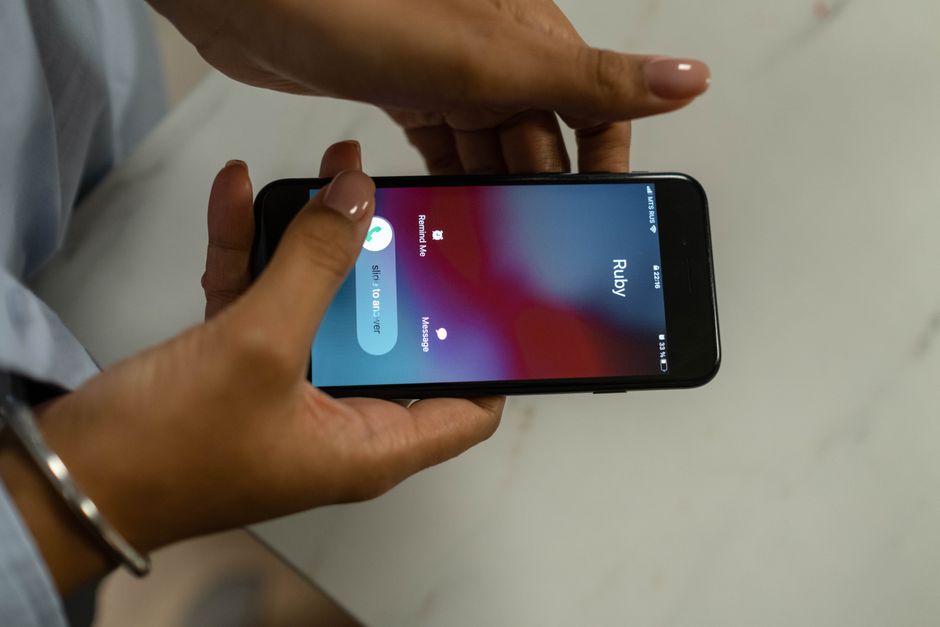
The Information Commissioner’s Office (ICO) provides UK GDPR guidance on working securely, including guidance relevant to working from home securely. The practical message is to protect personal information wherever you are working: use approved arrangements, keep devices secure, and avoid exposing information to people who are not authorized to see it. Your employer’s policies and local procedures should translate that guidance into steps for your workplace.
Agree What “Off Duty” Means Before Muting Anything
Off duty boundaries work best when the whole team understands them. A notification setting cannot decide whether a message is urgent, whether you are on call, or who is covering your patients. Those decisions belong in your rota, handover, escalation, and leave arrangements.
Before time off, confirm your working status and the route for urgent contact. If you are not on call, colleagues should know who is covering and which approved channel to use for an urgent issue. If you are on call, check the expected alert method and test that it reaches you. Do not silence the one channel you are required to monitor.
Make handover completion part of the plan
Handover completion is a practical boundary, not just an administrative task. Before leaving, pass on open actions, relevant risks, named ownership, and when the next review is due, using your organization’s approved process. Confirm that the receiving person has accepted the handover where your local procedure requires it.
A complete handover reduces the temptation for colleagues to contact you later for information they should already have. It also helps you distinguish an appropriate escalation from a routine update. If something remains unresolved at the end of your shift, make the status and responsibility explicit rather than assuming that a message will be seen after you leave.
Use Notification Schedules, Not Guesswork
Most current phones offer ways to schedule quiet periods, focus modes, or do-not-disturb settings. Names and options vary by device, operating system, and employer-managed configuration. Use the features your organization allows, and set them to match your actual rota—not a generic weekday schedule that may silence alerts during a night shift or wake you during leave.
A useful setup separates three questions:
- When am I working? Set work notifications to the hours or shifts when you are expected to respond.
- What must still reach me? Preserve only the alerts required by your role, such as an agreed on-call route. Do not add broad exceptions that let routine work messages through.
- Who covers me when I am away? Make sure the rota, team instructions, and escalation route reflect your absence.
If your phone supports separate schedules for different apps or obgynkey focus modes, use them only when they are compatible with your employer’s device policy. For example, you may be able to silence routine email outside working hours while keeping an approved on-call alert active. Test that configuration during a safe period with your manager or IT team if there is any doubt. Never assume that a setting has worked just because the screen shows a moon, focus icon, or “quiet” label.
Check exceptions and repeat callers
Quiet modes can have exceptions for favorite contacts, repeated calls, or selected apps. These may be useful for personal emergencies, but they can also allow work alerts through unexpectedly. Review the exceptions deliberately. If an approved on-call channel must remain available, confirm exactly how it is delivered and whether other work apps remain silent.
Do not rely on a personal contact list to control clinical escalation. Urgent work contact should follow the organization’s designated route, not depend on someone remembering to call your personal number. If the route is unclear, raise it with your manager before your time off.
Hide Lock Screen Previews
Muting notifications and hiding their content are different protections. A silent notification may still display a sender, subject line, message snippet, or patient-related detail on the lock screen. If someone can see your phone on a desk, in a shared home, or on public transport, that preview may disclose information even when the phone is locked.
Set previews to show no content while locked, or to appear only after the device has authenticated you, if those options are available and permitted. Review work email, messaging, calendar, and other approved work apps individually: one app’s privacy setting may not control another’s. Also check whether notifications appear on a paired watch, tablet, car display, or computer. The same preview can travel beyond the phone.
Then test the result on your actual lock screen. Lock the phone and send a test message through each work app, or ask your IT team to help test a managed device. Check what appears before unlocking, after unlocking, and on any paired device. This is an easy place to make a wrong menu tap: selecting a general notification option may not hide previews for every app.
Keep the phone’s passcode or biometric lock enabled, use a strong passcode where required, and install security updates in line with your organization’s instructions. These steps do not replace approved systems or careful notification settings, but they reduce the chance that a misplaced or unattended device exposes information.
Separate Entertainment From Clinical Work
Keeping work and entertainment apart can make it easier to switch off and reduce accidental sharing. If your employer provides a managed work profile or approved work container, use it as directed. If personal use is allowed on a work device, follow the policy about apps, downloads, and accounts. If you are using your own phone, keep personal and work apps clearly distinguishable where the approved setup supports that.
Separation is useful for attention and administration, but it is not a substitute for information security. Moving a work app to another screen does not stop its data being stored on the device. A separate folder does not encrypt messages, control access, or make a consumer app compliant. Use only the system approved for the information you are handling.
Do not take screenshots of patient or organizational information for convenience, paste it into personal notes, or use a personal photo, messaging, or cloud-storage app to move it around. If you need to keep a work record, use the designated record system and follow local retention rules. If you are unsure whether an app or feature is approved, ask before using it.
A Practical Setup Before Time Off
Use this checklist before a day off, annual leave, or a change in your on-call status:
- Check the policy. Confirm that your device and work apps are allowed for the intended use.
- Finish the handover. Record outstanding actions and confirm who owns them after you leave.
- Confirm cover. Check the rota and the agreed route for urgent escalation.
- Set notification schedules. Silence routine work alerts during time off, while retaining only required on-call alerts.
- Hide previews. Set lock screen content to remain private and review paired devices.
- Test the setup. Check the real lock screen and app behavior, including any allowed exceptions.
- Tell the team how to reach the right person. Use the organization’s approved status or cover arrangements, not a personal email workaround.
If Messages Keep Coming Through
First identify the source: is it an approved clinical alert, routine email, a group chat, or a personal app that is displaying a work account? Check the app-specific notification settings, focus-mode exceptions, and any managed-device controls. If your employer manages the device, do not try to defeat those controls; ask IT or your manager to help configure an appropriate and safe arrangement.
If colleagues continue to contact you directly after you have handed over, address the process rather than only changing your phone. Remind the team of the cover and escalation route, and raise recurring gaps with the person responsible for rota or service arrangements. If the contact reflects a genuine safety concern or a required on-call responsibility, follow local escalation policy.
Protect Your Time Off Without Losing the Safety Net
Good off duty boundaries are built from clear cover, reliable handover completion, approved systems, and notification schedules that match the rota. Lock screen privacy adds an important layer: it can keep message content from being exposed even when an alert appears. Keep entertainment and clinical work distinct, but do not mistake visual separation for security.
Most importantly, test the arrangement before you rely on it. Check the actual lock screen, the apps you use, and any connected devices. If a setting conflicts with your role or your employer’s policy, get advice rather than improvising. That gives you a better chance of switching off when you are off duty—and of staying reachable through the right route when you are not.